Mounting partitions at startup with /etc/fstab
Mounting partitions at startup with /etc/fstab
One thing that is helpful for me is knowing how to set up /etc/fstab to mount partitions at boot. This example is for a dual-boot with Windows 7 and Linux with another NTFS "Data" partition accessible from both operating systems. I've also set up partitions for two separate Linux installs, and a shared 4GB swap for them.
Below is a screenshot of the hard drive partitions in GParted GParted.
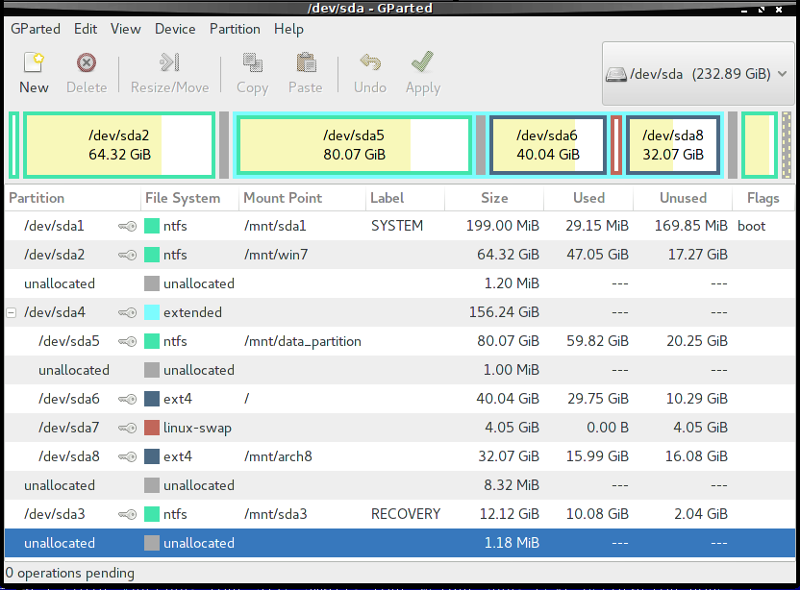
In my Ubuntu install on "/dev/sda6" I made the directories I needed for mount points in /mnt
sudo mkdir /mnt/sda1 /mnt/win7 /mnt/sda3 /mnt/data_partition /mnt/arch8
...and then ran "sudo blkid" to get the UUID's and added them to my [/etc/fstab](./etc-fstab_example](./etc-fstab_example "/etc/fstab")
When the /etc/fstab is ready run "sudo mount -a" in the terminal to check for errors.
# /etc/fstab: static file system information.
#
# Use 'blkid' to print the universally unique identifier for a
# device; this may be used with UUID= as a more robust way to name devices
# that works even if disks are added and removed. See fstab(5).
#
# <file system> <mount point>  <type>  <options>  <dump>  <pass>
# / was on /dev/sda6 during installation
UUID=f5e0d5b1-f810-4c51-80e2-c936f53f1444 /     ext4     rw,relatime,data=ordered     0       1
# swap on /dev/sda7
UUID=abc5a013-c49e-49ac-8a26-91891196fe50 none     swap     defaults     0       0
#
# Win7 PARTITIONS
# /dev/sda1
UUID=2AC27AD5C27AA4AB /mnt/sda1     ntfs    defaults,nls=utf8,umask=227     0       1
# /dev/sda2
# UUID=7262BFB062BF7785 /mnt/win7     ntfs    defaults,nls=utf8,umask=007,gid=46 0       1
UUID=7262BFB062BF7785 /mnt/win7     ntfs    defaults,nls=utf8,umask=227     0       1
# /dev/sda3 WIN7 RECOVERY
UUID=A4EA7D4EEA7D1E2C /mnt/sda3     ntfs    defaults,nls=utf8,umask=227     0       1
#
# DATA PARTITION
# /dev/sda5
UUID=3C4BB450261FC881  /mnt/data_partition     ntfs-3g    uid=1000,gid=100,umask=0022    0       0
#
# Arch8 /dev/sda8
UUID=f89bdc83-0e81-4a4b-96a4-03c2b33c8f1c /mnt/arch8     ext4     defaults     0       0
The mount options in the first line for the NTFS "DATA" partition work for the main user (with user id = 1000, group id = 100).
Also - when mounting directories on ext file systems (e.g. for data partitions) you can use "chown" to change ownership on the directory to your user like "sudo chown -R <username>: /path/to/dir" (for single user).
sudo chown -R $USER: /path/to/dir
(Using the "<username>:" changes both the owner and group permissions to the user's like "<username>:<username>" would. I just used the environment variable "$USER" instead of my username in that command as well.)